

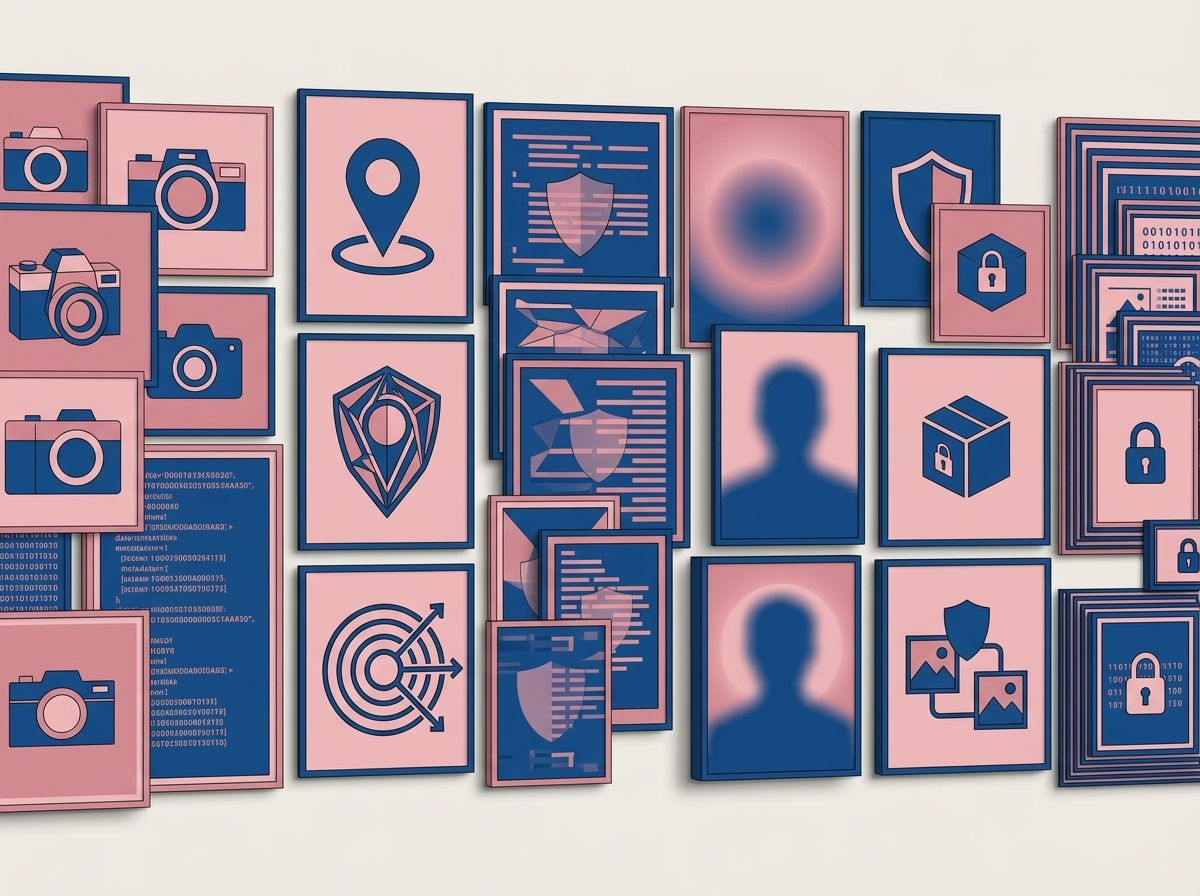
A photo leaks in two completely different ways
When someone says a photo is safe to post, they usually mean one of two things and rarely both. There is what you can see in the picture, and there is what is written inside the file that nobody sees.
The visible leak is the obvious one: a face, a license plate, the number on a front door, a laptop screen in the background, a package label on the hall table. The hidden leak is metadata, a block of information the camera writes into the file alongside the pixels. On a phone that routinely includes the exact latitude and longitude where the shutter fired, the date and time to the second, the phone model, and the camera settings.
These two leaks need two different fixes. Stripping metadata does nothing about the house number in the frame. Blurring a face does nothing about the coordinates in the file. I have watched careful people do one, feel finished, and post the other anyway.
What is EXIF, in plain terms?
EXIF stands for exchangeable image file format. Forget the name. It is a labeled block of notes stored inside a JPEG or HEIC file, written automatically by the camera at the moment of capture.
The fields that matter for privacy are the location ones. If location services were on for your camera app, the file carries the GPS coordinates of where you stood. Not the neighborhood, the spot. Paste them into a map and you get a pin. Add the timestamp and you have published a record of where a specific person was at a specific minute.
The rest is less alarming but still revealing: the device make and model, the software version, the lens, sometimes an owner name a photo app filled in once and never mentioned again. None of it is dangerous alone. All of it helps somebody connect an anonymous account to a real person, because the same camera fingerprint runs through every photo you post.
Do social platforms strip EXIF for me?
Mostly, on the big public feeds. When you upload to a large social network the image is re-encoded on their servers to fit their own sizes and quality settings, and that typically discards most of the original metadata. It is a side effect of their compression, not a promise made to you.
The places people actually get caught are everywhere else. Messaging apps that offer to send at original quality frequently send the original file, metadata included. Cloud folders and email attachments keep everything. A photo on a marketplace listing, a support ticket, a forum post or a shared drive is usually untouched.
So the rule is simple. Never rely on the destination to clean the file. Clean it before it leaves your device and it does not matter where it ends up.
How to check and strip the metadata
Checking first is worth the ten seconds, because it tells you whether you have a problem at all. Drop the photo into the EXIF remover and it lists what the file is carrying, then hands back a clean copy with those fields gone. The image itself is untouched, since the pixels and the notes are stored separately.
iPhone photos land in HEIC format, which many desktop programs still refuse to open and which carries the same location fields. Converting with HEIC to JPG gives you a file everyone can open and drops the original metadata along the way.
All of this happens inside your browser tab, on your own device, with nothing uploaded. That is the only version of this I would trust. Sending a photo you consider sensitive to an unknown server so it can tell you where the photo was taken is not privacy, it is a confession.
The black rectangle mistake I made in a client deck
Years ago I put a screenshot of a bank statement into a slide to illustrate a point, drew a solid black rectangle over the account number, exported the deck to PDF, and sent it out. I felt thorough.
A week later I opened that PDF and, out of curiosity, dragged my cursor across the black box. The account number highlighted underneath and pasted into a text field perfectly. The rectangle was a separate object sitting on top of the content, like a sticky note on a page, and anything on top can be moved, deleted or selected through.
This is the most important thing in this article. A shape drawn over something in a PDF, a slide deck or a design file hides it visually and leaves it in the file. Real redaction means destroying the pixels and exporting a flattened image, so there is nothing underneath to recover. If the thing is genuinely sensitive, do not cover it. Remove it.
How to censor visible details so they stay censored
The reliable approach is to re-sample the actual pixels and export a new image. Run the photo through the image pixelator, draw over the faces, plates or numbers, and export. The output is a new set of pixels where the original detail no longer exists at any layer. Nobody can peel back a layer that was never saved.
Two honest cautions. Go heavy: a gentle blur still carries a lot of the original structure, and lightly pixelated printed text can sometimes be reconstructed, because software can guess at a known font and work backwards. Use big blocks, not a polite smudge. And for a short string like an account number or an address, the safest move is not to obscure it but to cut it out of the frame with the image cropper. Nothing beats an area that was never exported.
Once the sensitive area is gone, resizing the image down to the dimensions you need throws away detail permanently as a bonus, and the image compressor gets the file to a sane size for posting. If you have to hit a specific limit, I went through the trade offs in compressing an image to an exact file size.
What to look for that is not a face
Faces are what everyone remembers and often the least identifying detail in the frame. Before I post a photo taken anywhere near my life, I scan the edges and the background deliberately, looking at it as though I were trying to find the person who took it. That takes fifteen seconds and catches things no automatic tool will.
- House numbers, street signs, and the distinctive shop across the road
- License plates, including reflections in windows and car paint
- Screens in the background showing email, a dashboard, a client name or an open tab bar
- Delivery labels, prescription labels, and mail on a counter
- Name badges, lanyards, school uniforms, and jerseys with a town on them
- Reflections in mirrors, windows, glasses and shiny appliances, where the photographer usually appears
The order I do it in
Order matters, because some of these steps undo each other if you run them backwards. Crop first, so anything that can leave the frame leaves the frame. Then pixelate whatever has to stay in the shot but must not be readable. Then resize. Then compress. Strip the metadata last, on the final file, because every save along the way can write new information back in.
Then open the finished file one more time and look at it cold, the way a stranger would. Not the version you remember exporting, the actual file you are about to attach. That final look has saved me twice, and both times it was something in a reflection.
For what ordinary internet activity gives away beyond photos, what your IP address reveals covers the network side of the same question.
Questions people ask
No. The metadata is stored in a separate part of the file from the pixels, so stripping it leaves the image identical. The only visible difference is that photo apps can no longer sort the picture by capture date or place it on a map, since that information is what you just removed.
No. It depends on whether location access was on for the camera app at the time. Phone photos very often carry coordinates, dedicated cameras usually do not, and screenshots normally carry none. The only way to be sure about a specific file is to check it.
Heavy pixelation destroys the detail and is not recoverable in any meaningful way. Light blurring is weaker than people assume, and lightly pixelated printed text has been reconstructed before, because software can guess at a known font. Use large blocks, and crop out short strings like account numbers rather than obscuring them.
Usually not. A shape drawn on top is a separate object, and the content underneath is often still selectable or visible once the shape is deleted. Genuine redaction means flattening the image so the original pixels are gone from the exported file.
No. Everything here runs inside your browser tab, so the image is processed on your own device and never sent anywhere. Handing a private photo to a stranger's server to make it private does not add up.